What you need
- Access to the Smart Meter Texas account for the service address.
- A phone or computer that can save a CSV file.
- One recent electricity bill for the same address.
Sign in or create a residential account
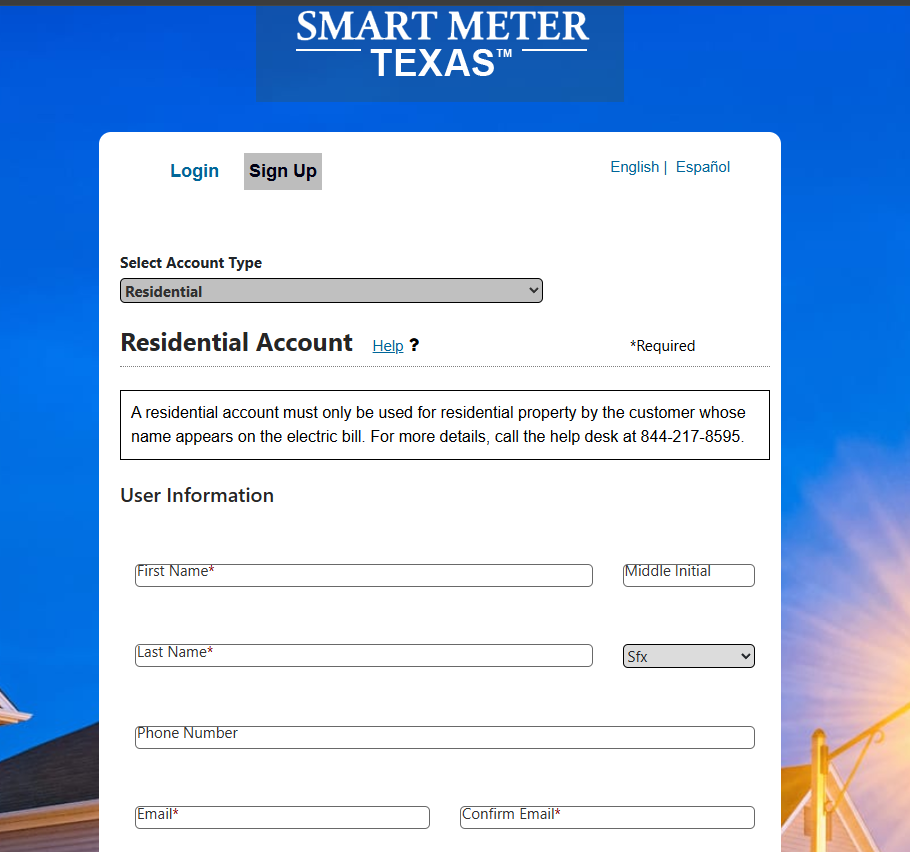
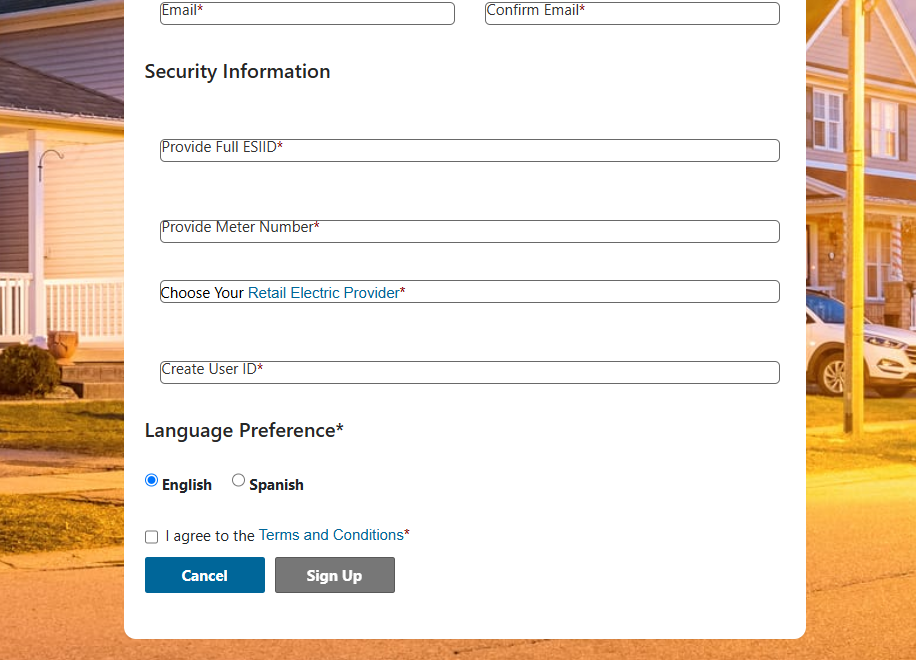
Go directly to Smart Meter Texas. If you already have an account, sign in. Otherwise, choose Sign Up. The full ESI ID, meter number, and current retail electricity provider can be found on your electric bill.
Open your Dashboard
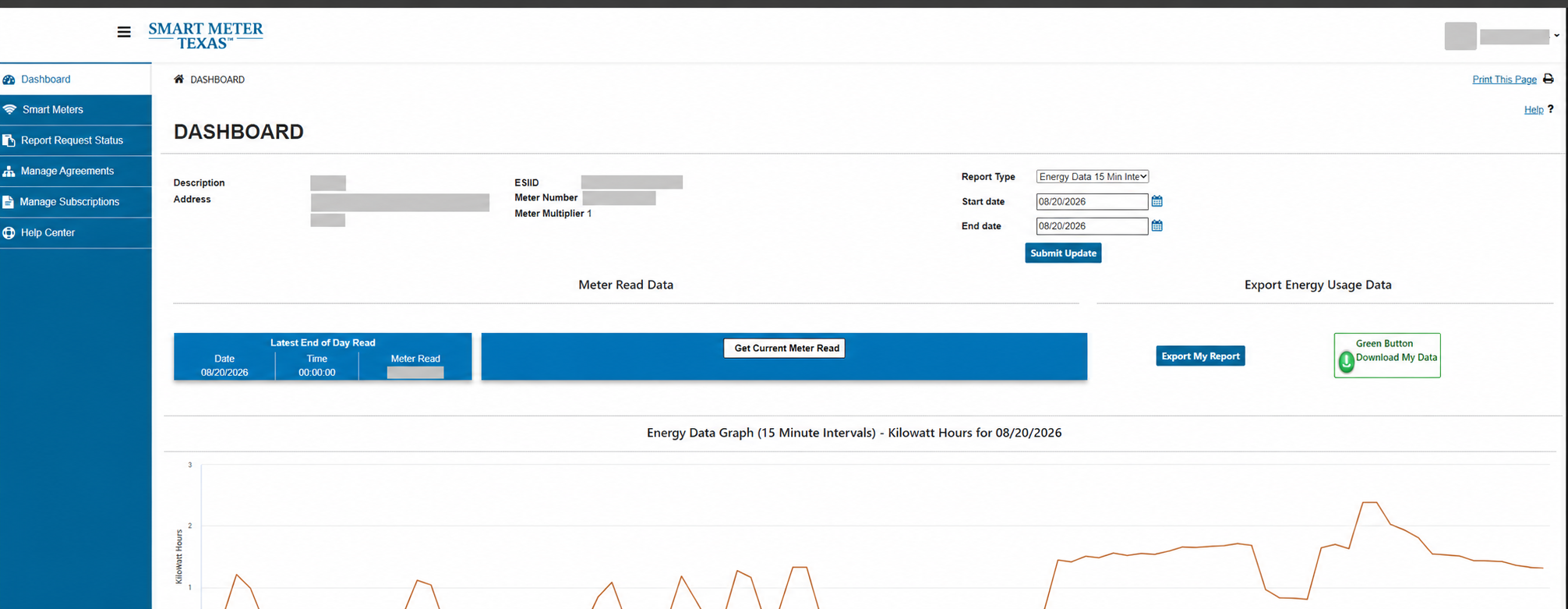
Confirm that the displayed service address is the home you want analyzed. The account details in this example are permanently obscured for privacy.
Choose the report type and dates
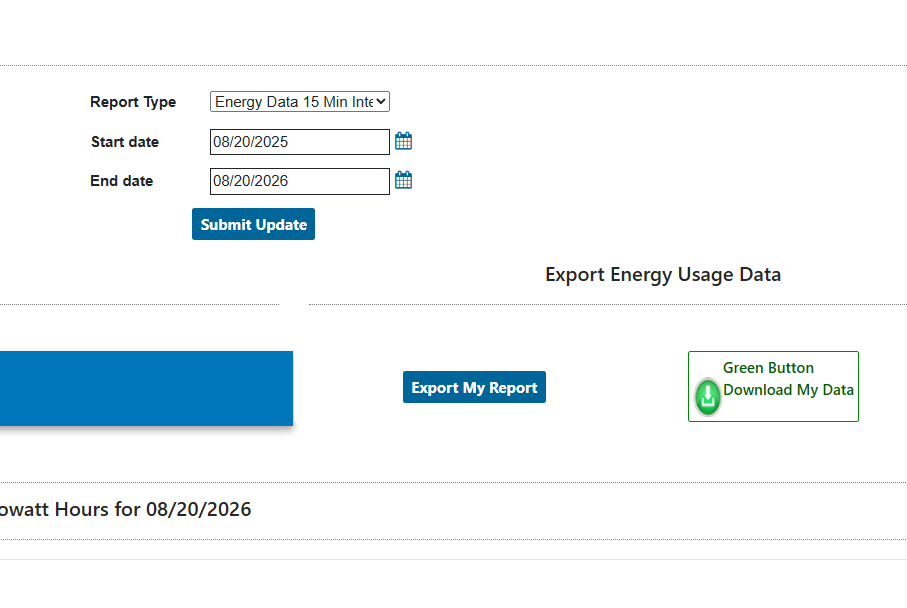
For Report Type, select Energy Data 15 Min Interval. Choose one year for the normal report or up to two years for more history. If you moved in more recently, begin with your move-in date. Then click Submit Update.
Click Export My Report
After the data updates, click the blue Export My Report button. That downloads the CSV file Power Made Clear needs. Do not use Green Button Download My Data; that produces an XML file instead.
Upload the original CSV
Return to Power Made Clear and upload the downloaded CSV as it arrived. Do not open and resave it, rename columns, delete rows, or combine files. The file is checked before report generation begins.
One year or two years?
| History | Good choice when | Tradeoff |
|---|---|---|
| One year | You lived there for the full year and want the normal report | Faster upload and processing |
| Two years | You want more history and both years belong to your household | Larger file and longer report generation |
If you recently moved in
Only usage after your move-in date represents your household. Enter the move-in information accurately. Older meter readings may belong to a previous resident and should not be used as though they were yours.
Common upload problems
- The file belongs to a different service address.
- The requested period includes incomplete or missing intervals.
- The CSV was edited or resaved by spreadsheet software.
- The move-in date conflicts with the usable meter history.
- The file is a summary export rather than interval usage data.
How Power Made Clear handles the file
The raw usage file is used to generate the report and then removed after processing. The private report remains available for 30 days as a customer convenience. Power Made Clear does not sell customer data.
Protect your account credentials. Power Made Clear will never ask you to send your Smart Meter Texas password. The screenshots added to this guide will have identifying details permanently blurred.